How To: Use a license on a license server
All licensing targets (for example, CODESYS Development System and CODESYS Control for <device> SL) support licenses which are stored on a network license server.
For more information about network licenses, see the following: Network Licenses (License Server)
You need to perform the following configuration, depending on the Licensing Target. It does not make any difference whether the license server is installed on a Windows computer or a Linux device.
CODESYS Development System:
If you want to use a license of the CODESYS Professional Developer Edition from a license server, then you need to enter the IP address of the license server in the CodeMeter WebAdmin.
Open the CodeMeter WebAdmin in the browser.
Click Configuration → Basic → Server Search List.
Click the
 plus symbol and enter the IP address of the license server.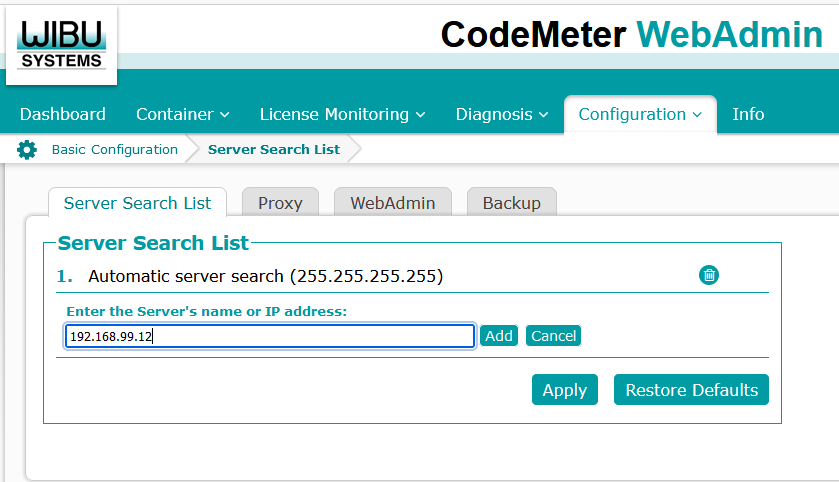
Click the Add button and then click on Apply.
The license server has now been added to the server search list.
Runtime system (CODESYS Control)
There are two ways to configure the license server, depending on the runtime system product:
All runtime systems
For all runtime systems, you can enter the IP address of the license server in the configuration file:
Open the configuration file in a text editor (for example, on Linux:
/etc/codesyscontrol/CODESYSControl_User.cfg)).Add the following entry to the end of the file:
Tip
One or more license servers can be entered.
[CmpCodeMeter]
EnableNetLicenses=1
LicenseServer.1=<IP adress license server 1>
LicenseServer.2=<IP adress license server 2>
CODESYS Virtual Control for Linux SL
The license server is configured via the Deploy Tool.
Use the Tools → Deploy Control SL command to open the Deploy Tool.
On the Communication Settings tab, specify the IP address and credentials and click Connect.
Switch to the Operation tab.
Under VPLCs, select the controller you want to license.
The settings are displayed on the right side of the dialog.
Under License server, specify the IP address of the license server.
Multiple license servers can be entered, separated by commas.
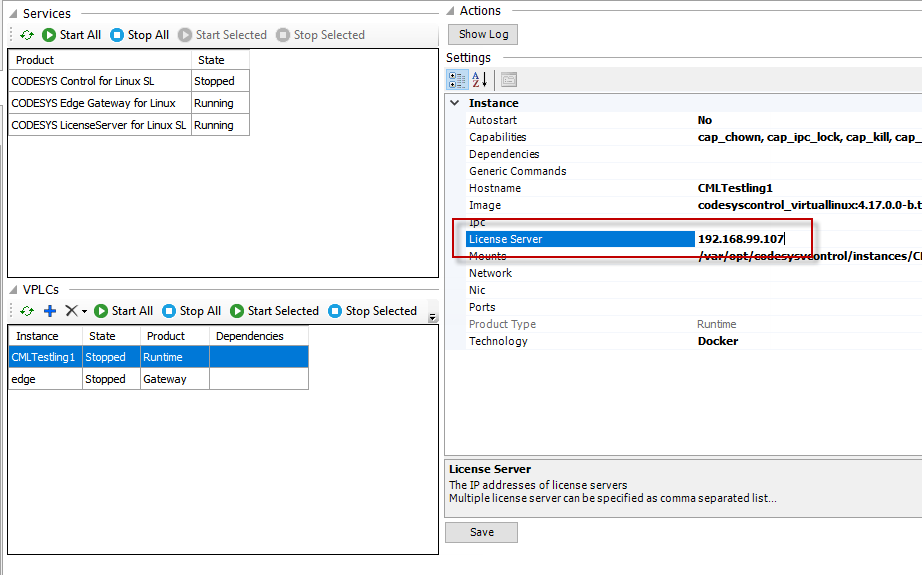
Click Save.