How To: Activate a license offline
These instructions explain how to activate a local license on a controller when the computer connected to this controller does not have Internet access.
Offline activation is done via the License Manager and the WebDepot.
Start the CODESYS Development System.
Run the Tools → License Manager command.
The License Manager will open.
Select the desired device and click OK.
CODESYS Development System connects to the selected controller.
The License Manager – Overview dialog displays an overview of all available containers and installed licenses.
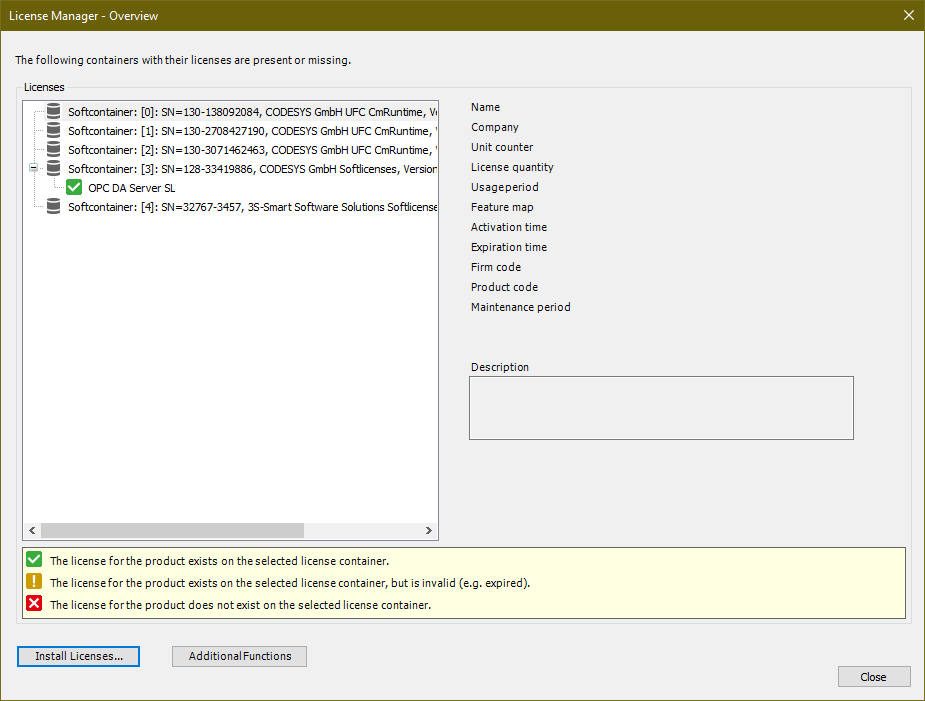
Select the desired container and click Install Licenses.
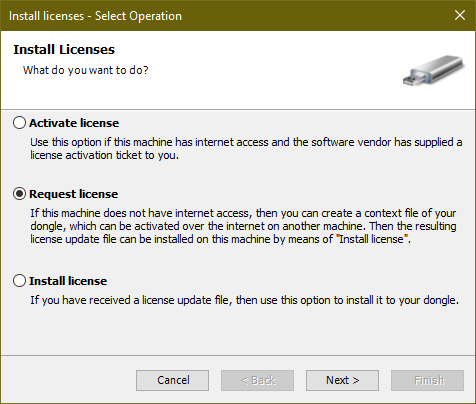
The Install licenses – Select Operation dialog will open.
Select the Request license option and click Next.
The Install licenses – Request License dialog will open.
In the Container list box, select the desired container where you want to install the license.
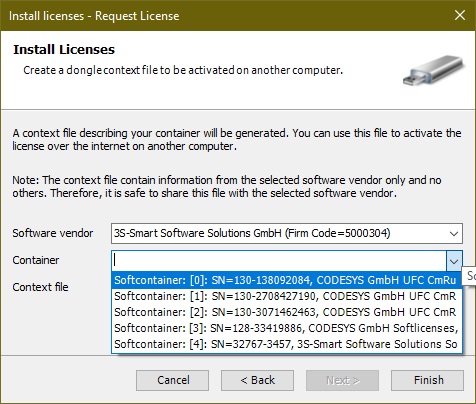
By default, the license request file is stored on the desktop.
Click Finish.
Copy the license request file to a computer with Internet access.
On this computer, open the page https://license.codesys.com/index.php in the browser.
In the Ticket field, specify the ticket ID of the desired license and click NEXT.
An overview of the licenses included in the ticket will be displayed.
Click Activate Licenses.
Select
CmActLicensewith ID 2001 and firm code 6000437.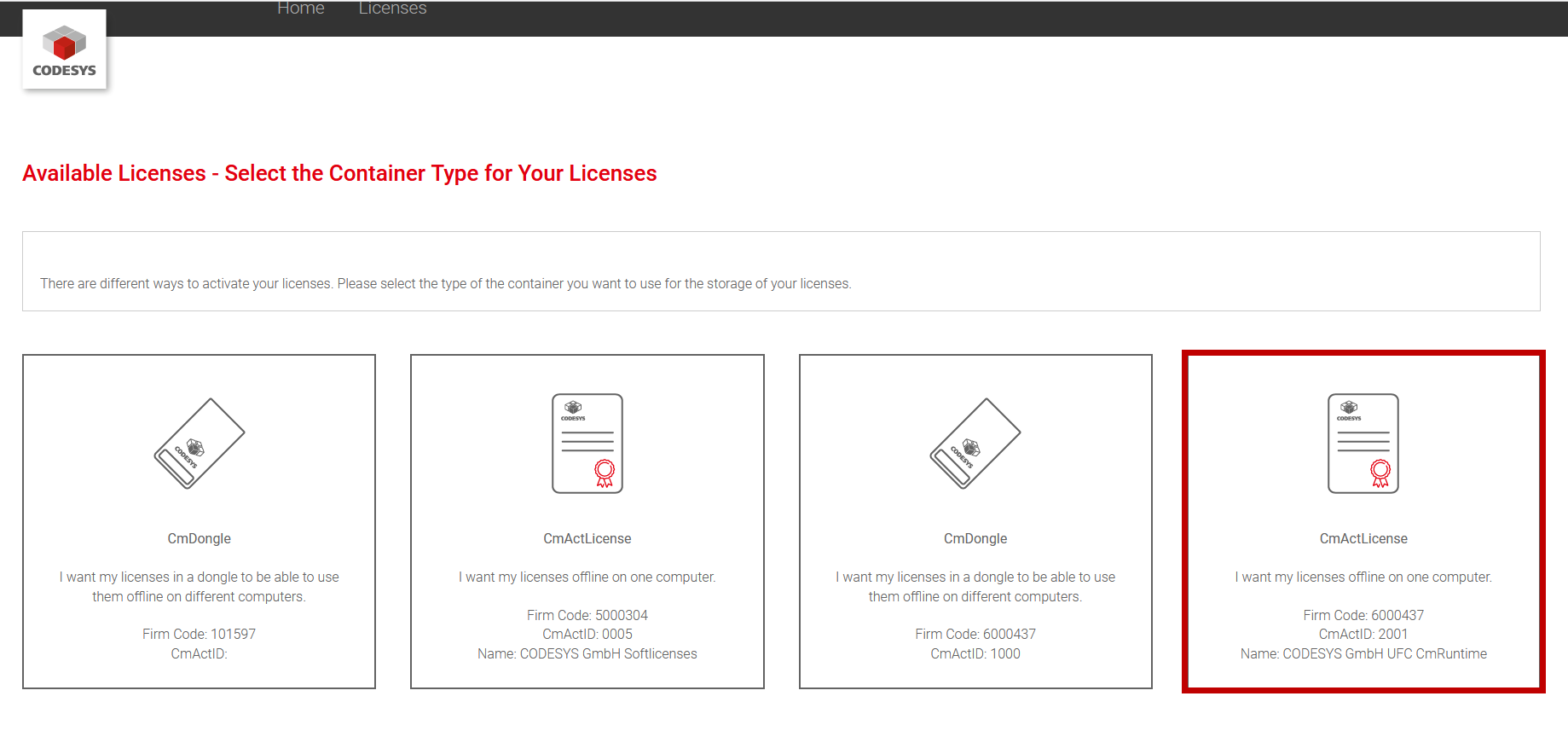
In the next dialog, on the bottom right side, click File-based license transfer.
In the next dialog, click the Browse button and select the previously copied context file.
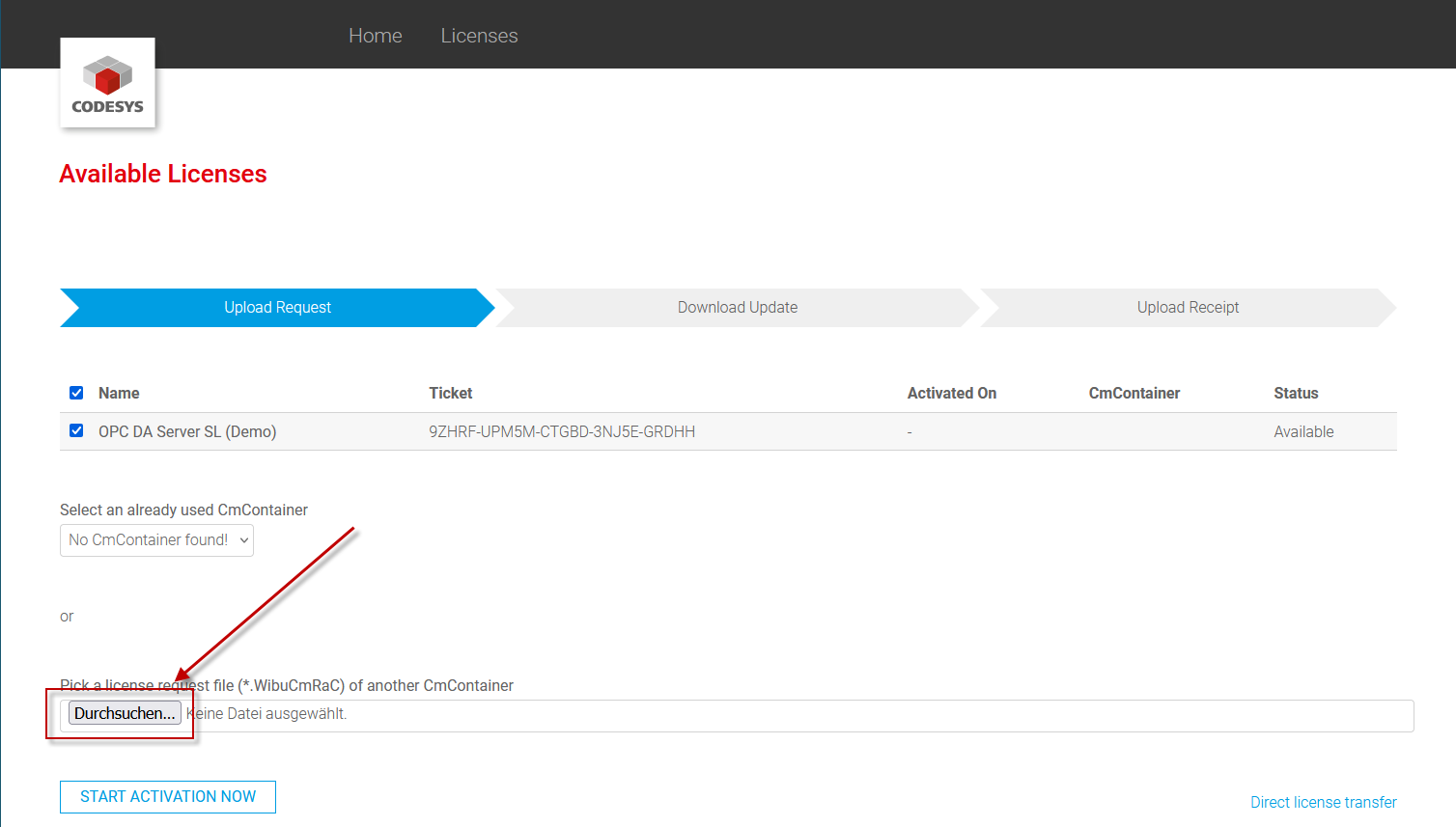
Click START ACTIVATION NOW.
Download the license activation file (
*.WibuCmRaU) to your computer.Copy the license activation file to the computer connected to the controller.
Connect to the controller.
Perform Steps 1–4.
In the Install license – Select Operation dialog, select the Install License option and click Next.
In the following dialog, select the desired container.
Note
The container ID and the file ID must be identical, otherwise activation is not possible.
Select the license activation file and click Finish.
The runtime system is now licensed.