How To: Backup and restore a CODESYS license
Important
These instructions do not apply to products from the CODESYS Virtual Control SL product family.
Backup and restore of CODESYS licenses vary depending on the product. Select the appropriate instructions according to the following classification:
CodeMeter Embedded | CodeMeter Runtime |
|---|---|
|
|
Codemeter Embedded

Backing up the license
Establish a connection from CODESYS to your controller.
In the device tree, select your controller and open the Files tab.
In the window on the right side, click the refresh symbol (
 ).
).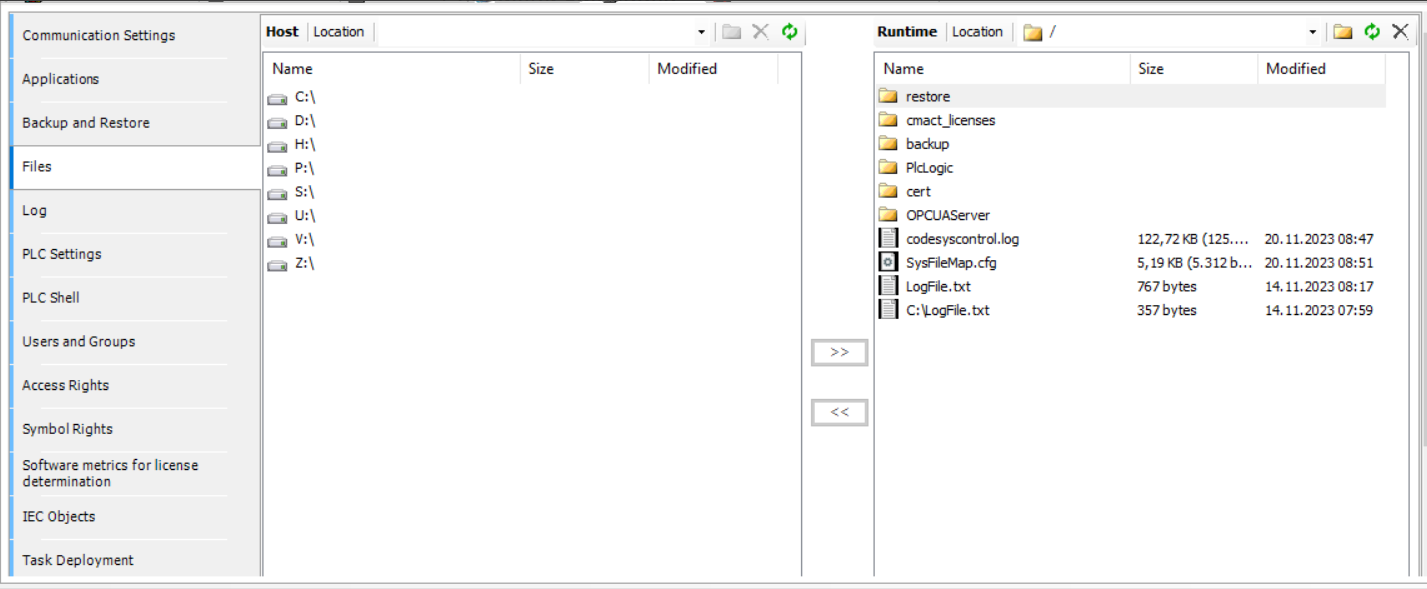
The files available on your controller will be displayed.
In the window on the left side, select the directory where you want to store the backup.
In the window on the right side, select the
cmact_licensesdirectory and click the button.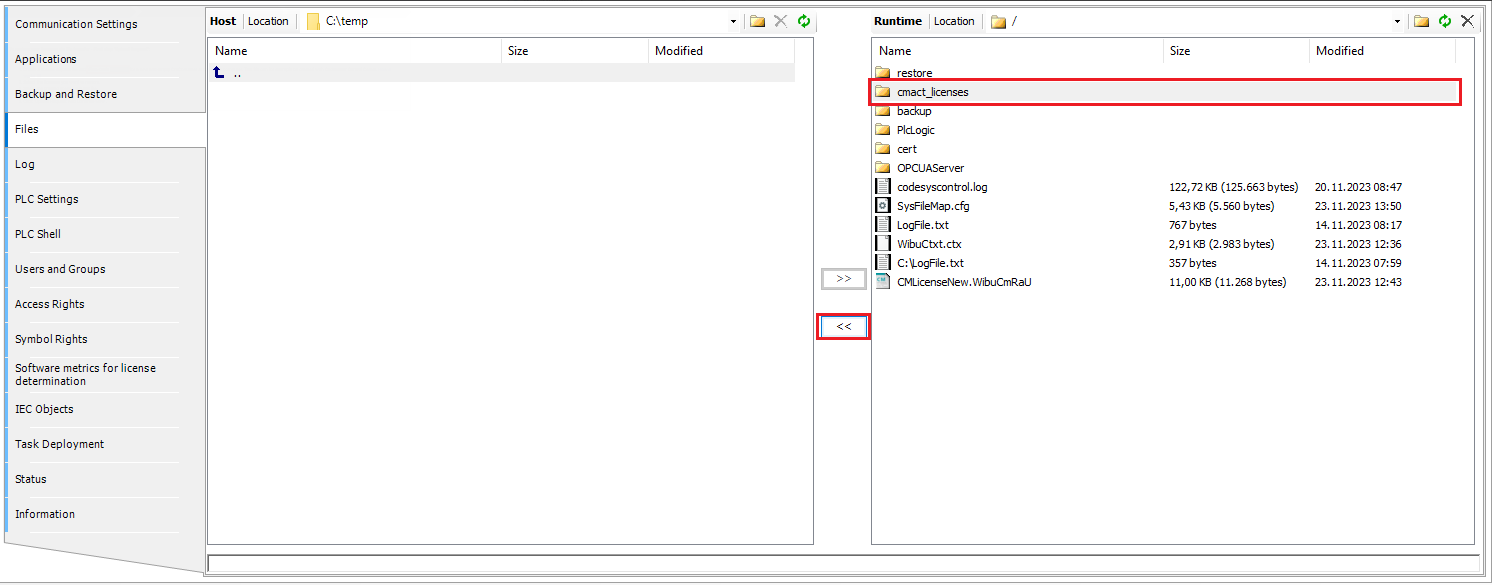
A backup copy of your licensing directory will be created on your computer.
Check that the backup copy has been created successfully.
Restoring the license
Important
Note that data loss is possible when performing the following instructions in Step 6. Therefore, read these instructions carefully.
Establish a connection from CODESYS to your controller.
In the device tree, select your controller and open the
Filestab.In the window on the right side, click the refresh symbol (
).The files available on your controller are displayed.
In the window on the right side, select the target directory. This has to be the top-level directory (storage location:
/)In the window on the left side, select the previously created backup copy on your computer and click the
 button.
The backup copy will be copied to your controller.
If a directory with the same name already exists, then you will be prompted to overwrite any files it contains.
Warning
Caution: When you select Yes, all files with the same name as in the backup directory will be removed from the existing directory. The same name does not necessarily mean that the contents are identical. Therefore, make sure that you do not accidentally overwrite files that you need.
Restart your controller after the backup copy has been successfully transferred.
Codemeter Runtime
Difference between container types
The container name identifies whether it is a UFC or an EWF container:
Name | Container Type |
|---|---|
CODESYS GmbH UFC CmRuntine | UFC container |
CODESYS-Control SL-V1 | EWF container |
Tip
When using UFC containers with CodeMeter Runtime, it is not necessary to create a backup.
Copy the folder specified in /etc/wibu/CodeMeter/Server.ini > CmActPath to a backup medium.
Note
In CODESYS, open the License Manager.
In the Select Target dialog, select Device as the target and click Next.
In the Select Container dialog, select SoftContainer and click Next.
Establish a connection from CODESYS to the controller where you want to restore the license.
Click Install Licenses, select Request License, and click Next.
If the Software vendor field is empty, then you can use the firm code. How to retrieve the firm code is described in the section Retrieving the firm code.
Select the container where the license should be installed and select the location where the license request file should be saved on your computer. Click Finish.
Open the License Central WebDepot and specify the ticket ID which you want to restore. Click Next.
Click Restore Licenses.
On the bottom right side, click File-based license transfer. If Direct license transfer is on the page, then you are already on the correct page.
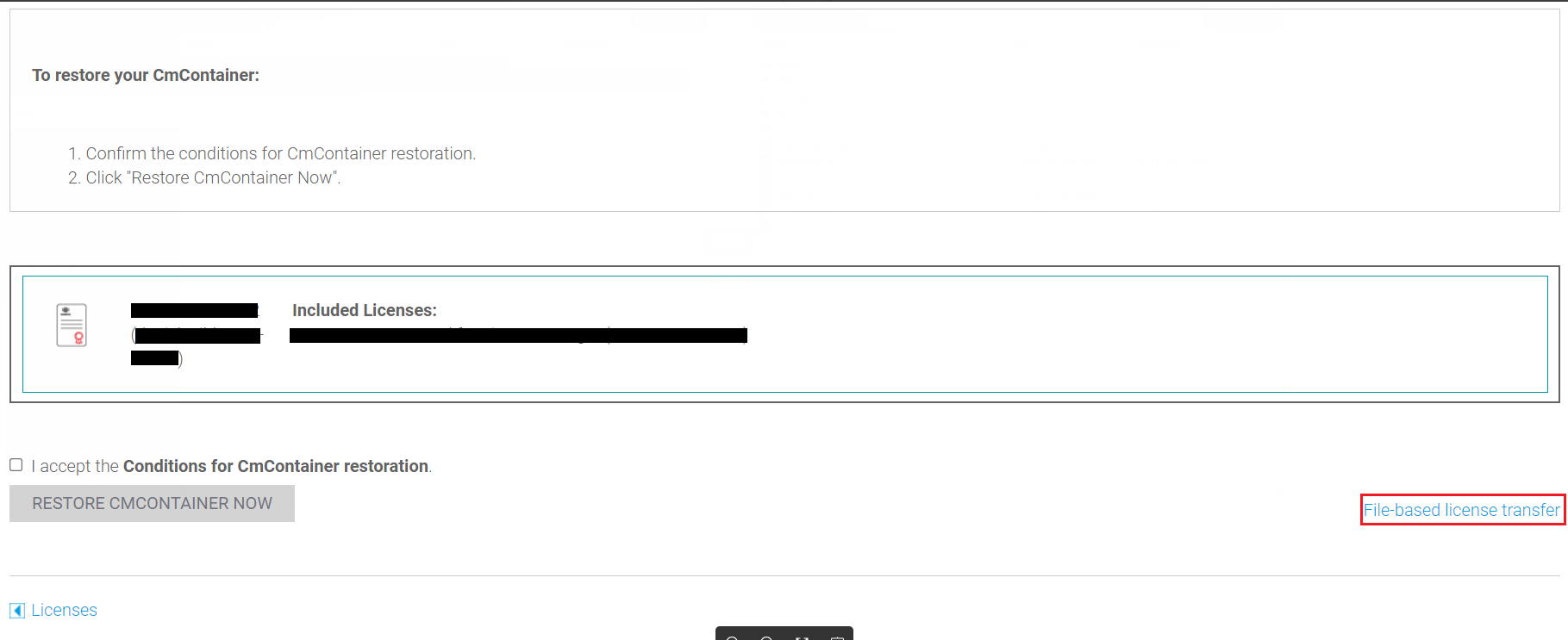
Upload the previously created license request file and click Upload request and continue now.
Click Download license update file now and save the file to your computer.
In CODESYS, open the License Manager.
In the Select Target dialog, select Device as the target and click Next.
In the Select Container dialog, select SoftContainer and click Next.
Establish a connection from CODESYS to the controller where you want to restore the license.
Click Install Licenses, select Install License, and click Next.
Select the container where you want to install the license and select the previously downloaded update file (extension:
.WibuCmRaU).Click Finish.
After a few seconds, the license will appear in the License Manager.
Open the License Central WebDepot and specify the ticket ID which you want to restore. Click Next.
Click Restore Licenses.
On the bottom right side, click File-based license transfer.
Copy the firm code as provided in Step 1.
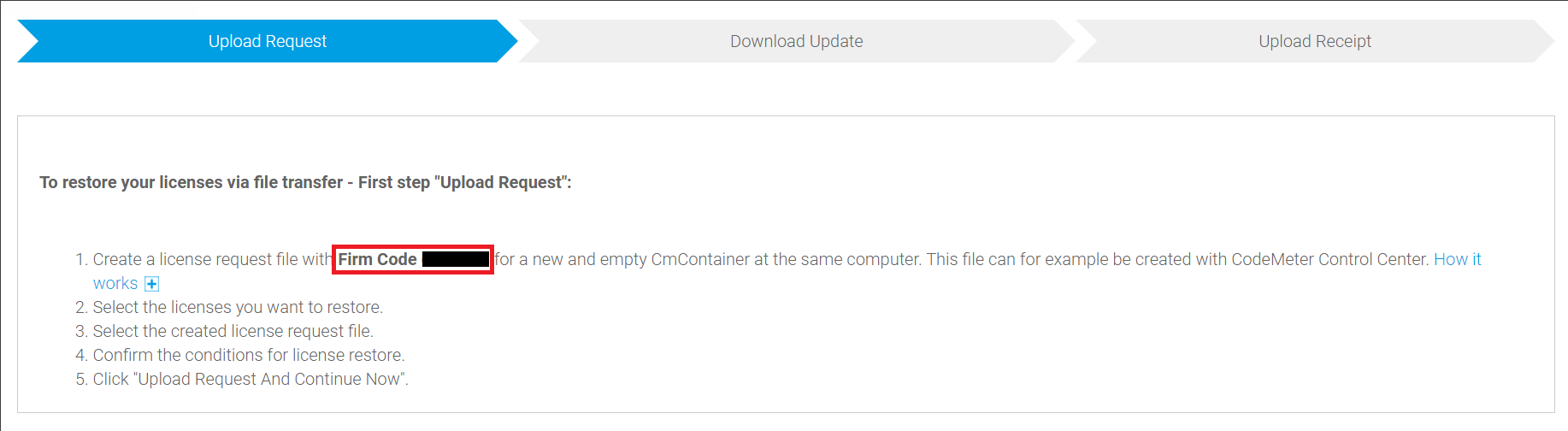
Requirement: You have already changed to EWF containers as described in Switching between container types.
Stop the licensing service:
systemctl stop codemeter.Copy the previously backed-up folder to the path specified in
/etc/wibu/CodeMeter/Server.ini > CmActPath.Set the ownership of the folder specified in
CmActPathtodaemon:daemon.Start the licensing service:
systemctl start codemeter.