Using API Calls to Trigger Events Programmatically

Events are alarms of observation type Event (API). They are triggered programmatically in the application code using the functionality of the AlarmManager library and the IArarmHandler7 interface.
Events are defined directly in an alarm group or in an alarm group template as an alarm instance.
For more information, see Example: AlarmManager
Alarming with an event
Defining an alarm with Event (API) type
In
Alarm Configuration, set an alarm group.In an alarm group, define an alarm of the observation type Event (API).
In the Class column, select for example the alarm class
Errorand specify the desired alarm message under Message.
The alarm ID_0, which is triggered via API on an event, is defined.
You can define such an event with any alarm class. Details are not required and an alarm condition is not given. The event is triggered via an API call.
Tip
You can also define an event in an alarm group template.
Implementing an API call
An event is triggered in the code by the API call of the library FB instance RaiseEvent, with an alarm ID being passed. Each alarm has a unique ID. This can be used as a variable in the code and therefore serves as a transfer variable.
Specifically, the AlarmID variable is an enum following this scheme:
Alm_<name of alarm group>_ IDs.ID_<configured ID>
Set the cursor at the program position where the function-block call should take place.
Enter "
AlarmManager" followed by a period.Select
AlarmGlobalsand enter a period.A window opens containing a list of all insertable elements ("List components" function).
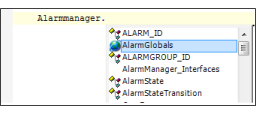
In the same way, insert the elements
g_AlarmHandlerandRaiseEvent.You get the following line:
Alarmmanager.AlarmGlobals.g_AlarmHandler.RaiseEvent.Now define the transfer variables
AlarmGroup_IDandAlarm_ID. To do this, enter an opening parenthesis.A tooltip appears, showing information about the transfer variables
Press the F2 key.
The Input Assistant opens.
On the Categories tab (
 ), select the category Variables (
 ).
).Input Assistant
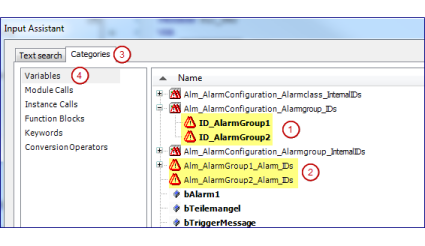
Select the desired alarm group ID variable (
 ).
).The variable is applied into the program line.
Enter a comma and use the Input Assistant to insert the desired alarm ID variable (
 ). Enter a closing parenthesis and a semicolon.
You get the following program line:
Alarmmanager.AlarmGlobals.g_AlarmHandler.RaiseEvent(Alm_AlarmConfiguration_Alarmgroup_IDs.ID_AlarmGroup1, Alm_AlarmGroup1_Alarm_IDs.ID_0);
This code triggers the alarm
ID_0in the alarm groupAlarmGroup1.
Triggering an event via an alarm instance
This is particularly relevant for library developers.
Important
If you observe the variable of a custom type (function block of structure) and you want to define an event for this POU, then you should preferably do this in an alarm group template.
It is an advantage that both the POU and the alarm group template can become part of a development library.
Defining an alarm with Event (API) type
Under your application, create the Alarm Group Template named
AGT_0.In an alarm group template, define an alarm of the observation type Event (API).
In the Class column, select the alarm class
Errorand specify the desired alarm message under Message.
The alarm ID_0, which should be triggered via API on an event, is defined.
This kind of alarm can be defined with an alarm class and acknowledgement method specified in the list box. Details are not required.
Implementing an API call
An event of an instance alarm is triggered by the API call of the library FB RaiseEventAlarmInstance or alternatively by RaiseEventAlarmInstanceByName.
Implement the
FB_MyAlarmfunction block with theMETH_RaiseEventmethod.Select the application node and click the Add Object → POU command.
Configure the POU as follows: name
FB_MyAlarm, type Function block, implementation language ST.Declare the function input variables.
Declaration:
FUNCTION_BLOCK FB_MyAlarm
VAR_INPUT
    xCondition : BOOL;
END_VAR
VAR_OUTPUT
END_VAR
VAR
END_VAR
Select the POU and add the
METH_RaiseEventmethod.Open the ST editor of the
METH_RaiseEventmethod and program the library call.Tip
Let the Input Assistant (F2) help you with this.
This code activates the alarm
ID_0from the alarm group templateAGT_0.METHOD RaiseEvent : BOOL VAR_INPUT END_VAR
Alarmmanager.AlarmGlobals.g_AlarmHandler.RaiseEventAlarmInstance(THIS, Alm_AGT_0_Alarm_IDs.ID_0);
Instantiate the function block in the alarm group template.
Open the editor of
AGT_0and click the vertical ellipsis button in the Type for alarm definition row.The Input Assistant opens.
Under
Application, select theFB_MyAlarmfunction block.
The alarm definition is instantiated.
Implement the API call in IEC code.
Declaration
PROGRAM PLC_PRG
VAR
    // Alarm Instances
    myInst : FB_MyAlarm;
    myInst2 : FB_MyAlarm;
END_VAR
Implementation
Alarmmanager.AlarmGlobals.g_AlarmHandler.RaiseEventAlarmInstance(ADR(myInst), Alm_AGT_0_Alarm_IDs.ID_0);
Alarmmanager.AlarmGlobals.g_AlarmHandler.RaiseEventAlarmInstanceByName(ADR(myInst2), Alm_AGT_0_Alarm_IDs.ID_0, 'AGT_0');