Configuration of Connection Parameters
After you have prepared the Event Grid as well as the CODESYS project, you can parameterize the connection and establish the connection to the broker.
Adding a thumbprint to the client identity
The thumbprint of the device certificate which was read in the Reading a thumbprint chapter must be specified as the primary thumbprint for the created client identity.
To do this, navigate to the client overview in the Azure portal and click the matching client identity.
The properties form is similar to the form used when creating the MQTT client.
In the Primary Thumbprint field, set the thumbprint and click the Save button to save the changes.
Starting the sample project
Download the example application to the controller and start it.
The following visualization opens.
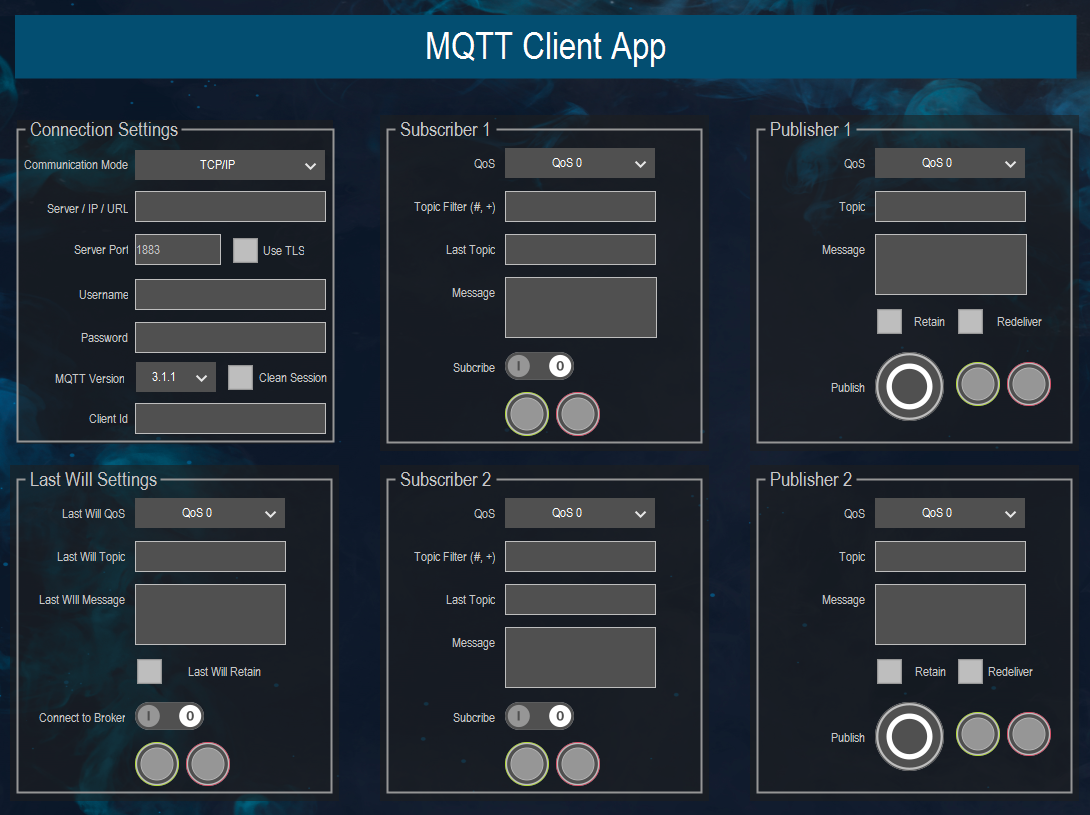
Establishing a connection between the MQTT client and the broker
In the Connection Settings area, specify your connection parameters:
Parameter
Value
Description
Server / IP / URL
<MQTT Hostname>
The MQTT hostname you used in the TLS context.
Server Port
8883
For secure MQTT communication, Port 8883 is used by default and is therefore expected by the Event Grid Broker.
Use TLS
True
The Use TLS check box must be selected (checked) in order for the configured TLS context to be used.
Important
This check box has nothing to do with the deprecated flag
xUseTLSof theMQTTClientfunction block.This flag should no longer be used.
Username
my-auth-name
The authentication name which was specified when the client identity was created must be specified in the
Usernamefield. In the case of the example, it ismy-auth-name.For more information, see Creating an MQTT client corresponding part in section 2.4.
Client Id
MyClient1
Any name
In the Last Will Settings area, use the Connect to Broker switch to activate the
MQTTClientfunction block.The lamp underneath turns green as soon as the client is connected to the broker.
Testing the communication
To test the communication, the client should send a message to a topic and receive the sent message back.
Setting up a subscriber
In the Subscriber 1 area of the visualization, specify the following parameters:
Parameter
Value
Description
Topic Filter
permitted/#Receives all messages whose topic root is
permitted.When creating a
Spacestopic, the topic templatepermitted/#was used, on the basis of which the permissions were granted. If a topic used here which does not begin with the rootpermitted, then the client does not have permission to subscribe to this channel, which in turn results in an error state.For more information, see the following: Creating a topic space and Definition of permissions
Use the
Subscribeswitch to activate theMQTTSubscribefunction block.The lamp underneath turns green, as when establishing a connection to the broker, if the action has been successfully completed.
Setting up a publisher
In the Publisher 1 area, specify the following parameters in the visualization:
Parameter
Value
Description
Topic
permitted/testSends a message on the topic/channel
permitted/test. Because the subscriber listens to all channels below the permitted root, it will receive this message.When creating a
topic space, the topic templatepermitted/#was used, on the basis of which the permissions were granted. If a topic used here which does not begin with the rootpermitted, then the client does not have permission to publish/send anything to this channel, which in turn results in an error state.For more information, see the following: Creating a topic space and Definition of permissions
Message
<text>
Any message to be sent.
Starting a data transfer and receiving data
In the Publisher 1 area of the visualization, click the large Publish button to send the defined message on the topic "permitted/test".
In the Subscriber 1 area, you should now be able to see the sent message and the topic on which it was received.
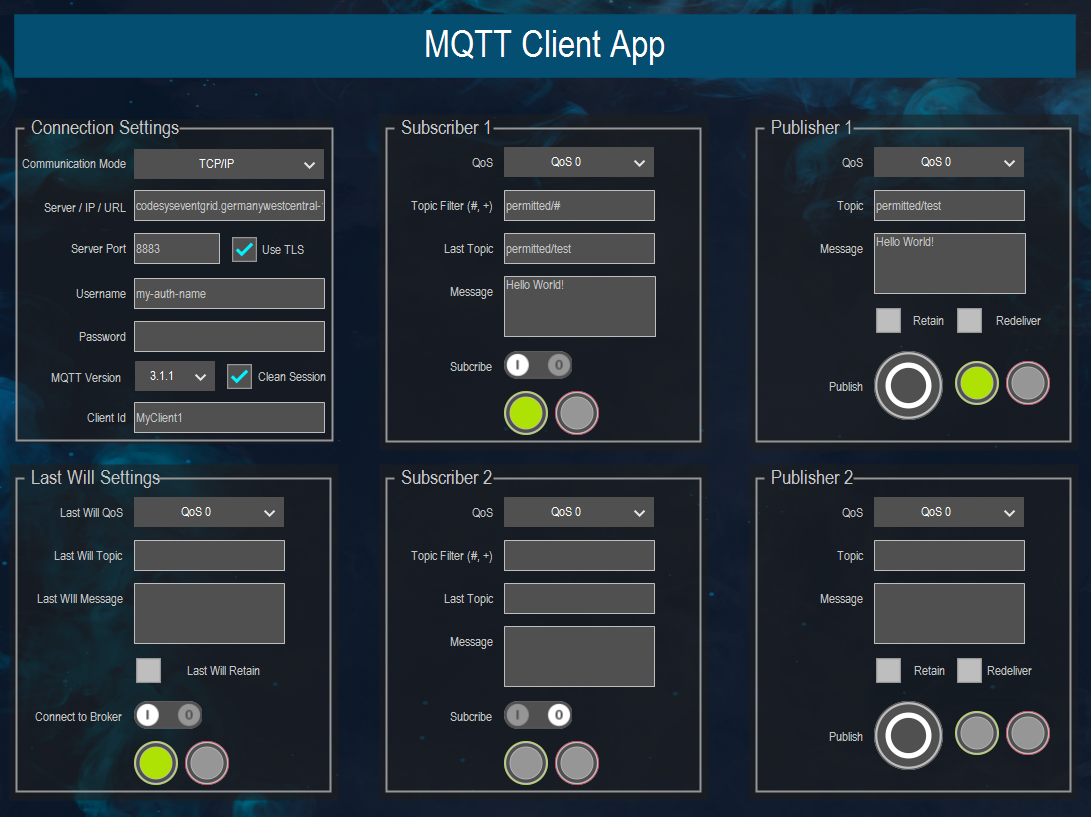
The CODESYS MQTTClient communicates successfully via the MQTT broker of the Azure Event Grid namespace.