Configuration of Microsoft Azure
Note
You need an account to configure Azure. For more information, see the Microsoft website.
All modules are referred to as resources.
Overview: Structure of an Azure Event Grid
Note
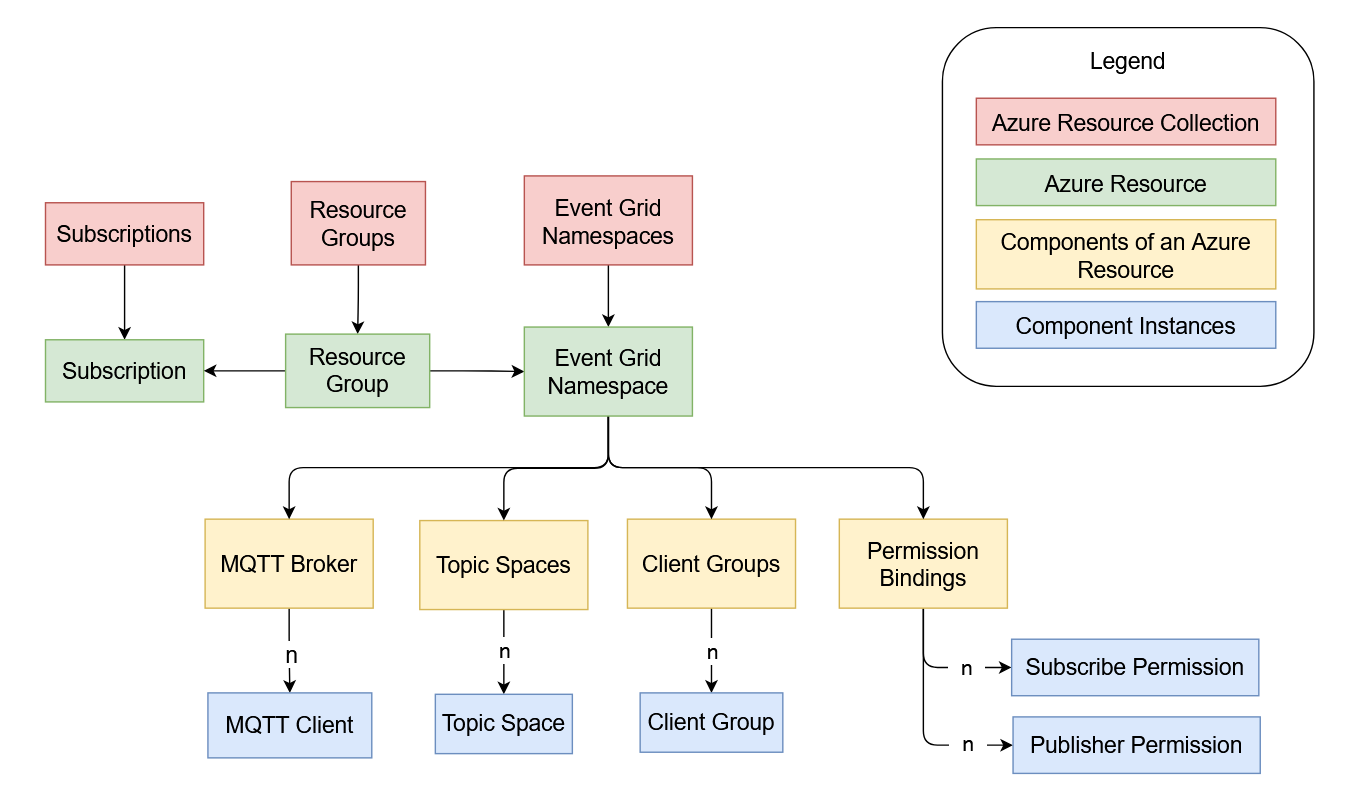
The following diagram is an incomplete overview of the real Azure architecture concerning the Event Grid. The simplified representation focuses on the relevant elements for MQTT communication between clients via the Event Grid.
The individual elements will be explained in more detail in the following sections. The Event Grid consists of a set of specific Event Grid namespaces.
General preparation
To use the Event Grid, the following resources must exist in your Azure account:
A valid subscription
A resource group
These two essential resources are primarily needed for the organization and billing.
Note
For more detailed information about resources, components of these resources, and their configuration, see the Microsoft Azure Portal.
Creating an Event Grid namespace
The following steps are customized for use with a CODESYS MQTT client and represent a consistent, working example.
For more information, see the following: Quickstart by Microsoft.
Create an "Event Grid Namespace" resource.
For more information, see the following: Help page of Microsoft Azure.
This resource contains all functionality to be used and includes the most important, general settings.
Activate the MQTT broker.
A Microsoft-side identity management system via Microsoft Entra is not required.
For more information about current restrictions and capabilities of the MQTT broker in Azure Event Grid, see the following: Help page of Microsoft Azure.
On the Overview tab, copy the MQTT hostname. This information will be needed later.
This is the URL of the MQTT broker within this Event Grid namespace which clients can connect to.
Creating an MQTT client
For the MQTT broker of the created Event Grid namespace, define MQTT clients which are allowed to connect to the broker.
For more information about creating MQTT clients, see the following: Help page of Microsoft Azure.
Create the CODESYS MQTT client.
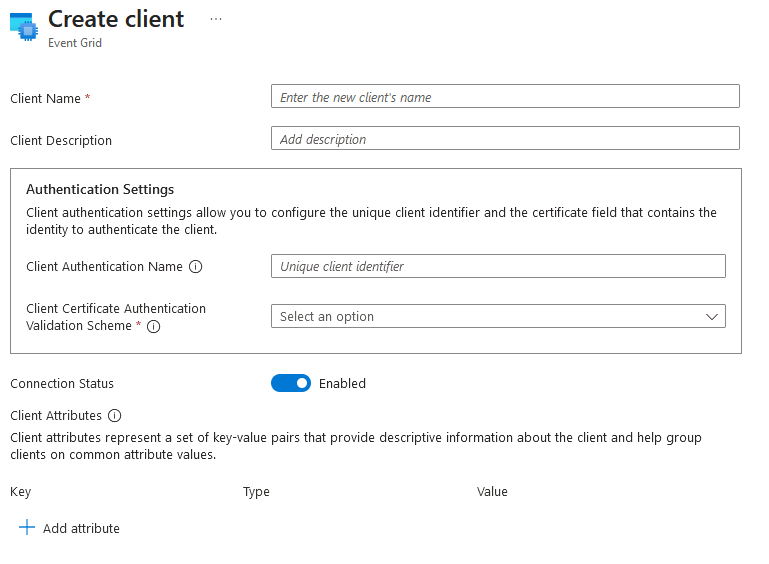
The form to create an MQTT client looks like this in the Azure portal:
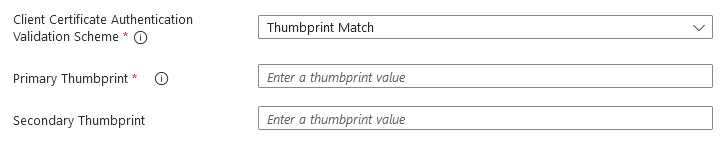
After selecting the thumbprint authentication method, the following section is displayed:
Configure the client according to the following information:
Parameter
Example Value
Description
Client Name
CODESYS MQTT Client
The client name can be freely chosen and must be unique within an Event Grid namespace.
This name is not associated with the client ID of an MQTT client.
Client Description
My CODESYS PLC
An optional description, for example for an Event Grid administrator to easier identify a client.
Client Authentification Name
my-auth-name
This value is used to authenticate the client when establishing a connection.
Important
The value set here will be required later in the parameterization of CODESYS MQTT client.
The value can no longer be changed in the Event Grid after the client identity has been created.
This authentication name can, but does not necessarily have to, match the client ID of an MQTT client or a field of a client certificate in order to work.
The client must send a client authentication name as the MQTT username when establishing a connection. This allows the incoming certificate to be assigned to the identity of the client. This identity is used for authentication.
Client Certificate AuthentificationValidation Scheme
Thumbprint Match
In the case of "Thumbprint Match" authentication, the thumbprint is read from a client certificate which is exchanged between the client and the server during the TLS handshake. If the thumbprint from the certificate matches the thumbprint stored in the Event Grid for this client identity, then the authentication is considered successful.
Tip
For more information about authentication methods, see the following: Help page of Microsoft Azure.
Primary Thumbprint
<HEX-String>
The thumbprint of a certificate. This field, as well as the secondary thumbprint, can be left blank at first when creating the client identity. The value of the thumbprint is a HEX string.
Important
For a certificate, the thumbprint can be made visible using several algorithms which generate HEX strings of different lengths. Azure supports multiple thumbprint formats.
Connection Status
Enabled
With this switch, the client identity can be enabled or disabled in order to allow or refuse this client a connection to the Event Grid MQTT broker.
Client Attributes
Attribute (
    Key: Group
    Type: String
    Value: MyGroup
)
Client attributes are metadata about a client identity which can be used for grouping into client groups. In this example, an attribute named
Groupof typeStringis created and the valueMyGroupis set. This allows the client to be identified later via a query.
Creating a client group
A client group is a group of clients for which common policies or permissions should apply, for example.
Create a client group.
For more information, see the following: Help page of Microsoft Azure.
At least one group must be created.
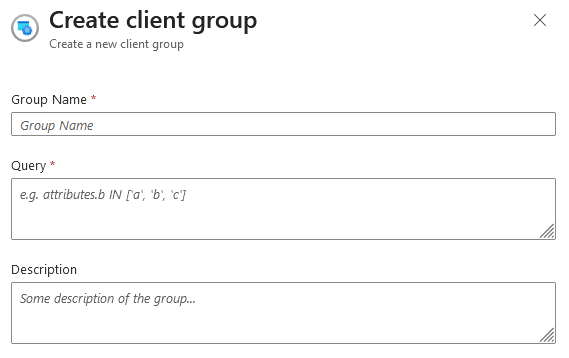
The form to create a client group looks like this in the Azure portal:
Configure the client group according to the following information:
Parameter
Example Value
Description
Group Name
MyClientGroup
A freely chosen group name which will later be used to link this client group.
Query
attributes.Group = "MyGroup"
A query in order to group clients based on characteristics.
For information about how queries must be structured, see the following: Help page of Microsoft Azure.
In the example value, the
Groupattribute, which was defined previously when the client was created, is used and checked with theMyGroupvalue. If only one client has been created in the previous step, then it will be the only one assigned to this client group.Description
My Clients
An optional description as help for administrators.
Creating a topic space
A topic space is a collection of MQTT topic templates. Here you define topics for which you assign permissions collectively in the configuration of access permissions.
Create a topic space
For more information, see the following: Help page of Microsoft Azure.
The form to create a topic space looks like this in the Azure portal:
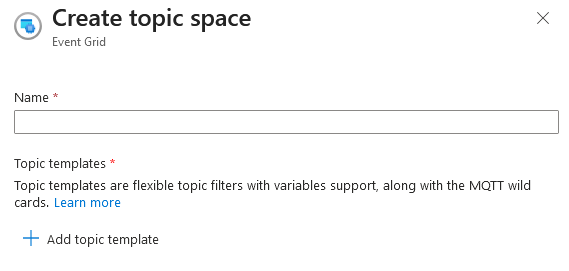
Configure the topic space according to the following information:
Parameter
Example Value
Description
Name
MyTopicSpace
A freely chosen name which will later be used to link this topic space.
Topic templates
permitted/#
Wildcards (
#, +) and variables can be used in the topic templates.For more information, see the following: Help page of Microsoft Azure.
In the example value, any topic (even arbitrarily nested) is assigned to this topic space as long as the root of the topic hierarchy is
permitted.
Definition of permissions
Permissions are granted for a combination of client groups and topic spaces. There are two types of permissions which can be set:
Subscriber: All clients in the specified client group are permitted to read messages from a topic which is assigned to the specified topic space.
Publisher: All clients of the specified client group are permitted to write messages to a topic which is assigned to the specified topic space.
Define the permissions of the client group and the topic space.
The form to create a topic space looks like this in the Azure portal:
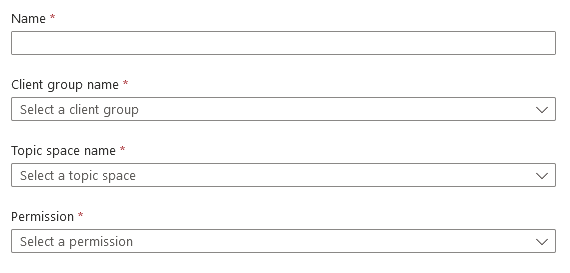
Configure the permissions according to the following information:
Parameter
Example Value
Description
Name
MySubscriberPermission / MyPublisherPermission
A freely chosen, unique name.
Client Group Name
MyClientGroup
A reference to an existing client group. The example value
MyClientGrouplinks the previously created client group to this permission. This grants all clients in this group a corresponding access to the defined topic space (Topic Space Name).Topic Space Name
MyTopicSpace
A reference to an existing topic space. The example value
MyTopicSpacelinks the previously created topic space to this permission. This means that all clients in the specified client group (Client Group Name) are granted permission for the topics assigned to the topic space specified here.Permission
Subscriber /Publisher
Read or write permissions are granted to clients in the topic space.
This concludes the configuration on the Azure side for now.