Saving the Connection Details
To simplify the management of connection information for many different devices, the Deploy Tool version 4.21.0.0 and higher supports the saving of session profiles.
Creating a profile
Click the Tools → Deploy Control SL command.
On the Communication tab, click Session Profiles.
An area will be displayed for managing the session profile:
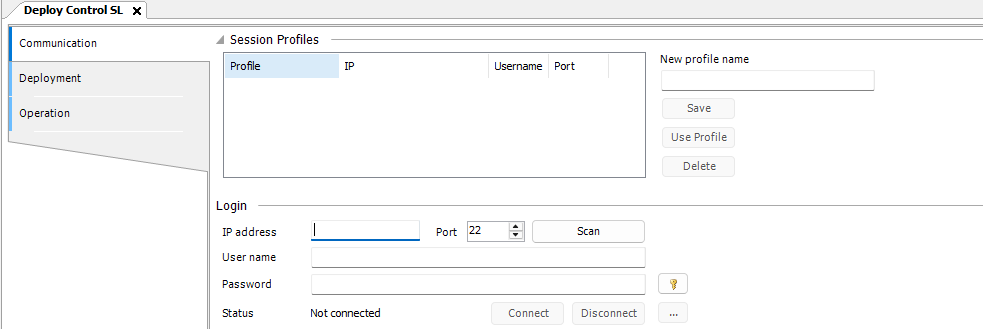
In the fields IP address, Port, and User name, specify the data for the desired connection.
In the New profile name field, specify a name for the new profile.
Click Save.
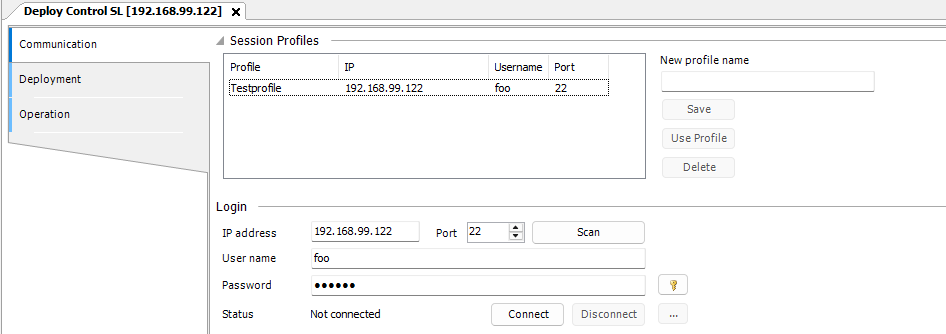
The profile will be listed in the session profiles.
Using a profile
Click the Tools → Deploy Control SL command.
On the Communication tab, click Session Profiles.
An area will be displayed with previously created session profiles:
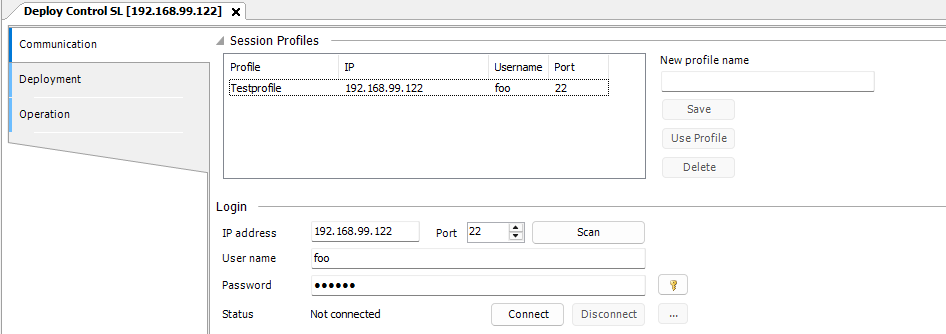
Select the desired session profile and click Use Profile.
The connection details are entered into the input fields.
Specify the password and click Connect.
Deleting a profile
Click the Tools → Deploy Control SL command.
On the Communication tab, click Session Profiles.
An area will be displayed with previously created session profiles.
Select the desired session profile and click Delete.
The profile will be removed from the list.