使用专属用户的运行时流程
一些产品来自 CODESYS 现在有了自己的用户和群组,他们有权运行相应的进程。这提高了系统的安全性,使系统管理员能够更好地控制应用程序和运行时进程在系统上可以更改的内容。
注意
这些是操作系统上的用户,而不是 CODESYS 应用程序用户。
版本表
此表显示了哪些产品在哪些版本中有专门的用户和群组,以及任何已知的限制。
产品 | 自版本起的专用用户 | 用户、群组 | 限制 |
|---|---|---|---|
CODESYS Control for Linux ARM SL CODESYS Control for Linux ARM64 SL | 4.21.0.0 |
| 请参阅以下限制 |
CODESYS Edge Gateway for Linux | 4.21.0.0 |
| 没有已知的限制 |
CODESYS Safe Control SL | 4.21.0.0 |
| 没有已知的限制 |
CODESYS TargetVisu for Linux SL | 4.21.0.0 |
| 没有已知的限制 |
限制
当运行时进程以专用用户身份运行时,以下产品会受到限制:
通过以下方式使用 GPIO
sysfs要求运行时进程以 root 身份运行。使用 XDP 要求运行时进程以 root 身份运行。
更改用户
运行时部署工具
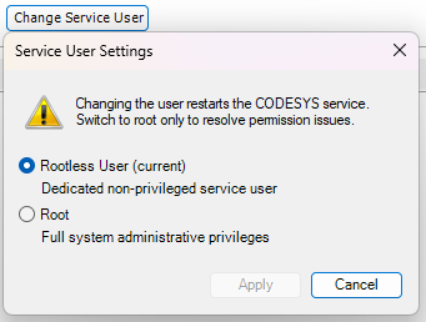
使用运行时部署工具时,可以在上单击相应的产品 操作 选项卡。在操作中,单击 更改服务用户 按钮。将打开一个对话框,您可以在根用户和专用用户之间切换。请注意对话框中的说明:
手册
停止运行时系统。
Open the file
/etc/default/<product>(for example,/etc/default/codesyscontrol).替换
codesyscontrol和root然后保存并关闭该文件。Edit the service configuration using the command
systemctl edit <product>(for example,systemctl edit codesyscontrol).从下方的行中移除注释符号
[Service]: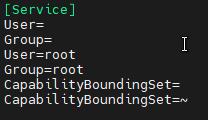
保存并关闭该文件。
启动运行时系统。