Performance Optimization
In this section, we will show you how to set up a Linux-based CODESYS Control SL product for your device and your application so you can get the best possible performance.
We provide you with tools which you can use to check and evaluate the current status of your system.
We recommend the following procedure. Work through these steps in the specified order. It does not make any sense to move on to the next step if the current one is not as optimized as it needs to be.
Important
After each step, check that the last change has not negatively affected the optimizations of the previous steps.
After you have achieved the desired performance under normal load, you can optionally perform a test under high load with stress-ng or iperf.
You can find more information on the following websites:
Checking the hardware
Do not use shared caches for the processor cores of your controller.
If you are using Ethernet-based fieldbuses for your target device, then use a physical adapter for them. Do not use a switch architecture.
Setting up Linux
Use a real-time kernel.
Important
For real-time operation on Linux, use the Realtime PREEMPT patch. Using a low-latency kernel is not sufficient because it does not guarantee deterministic real-time properties.
For more information, see the following:
Many of the following system settings can also be configured directly using the PLCShell via the runtime system or directly via the configuration file of the runtime system. Some system settings will not persist across a system restart. By entering the settings into the configuration file, the settings will automatically be restored when the runtime system starts. Running the corresponding PLCShell command also adds the respective entries to the configuration file.
PLCShell Command
Configuration File Entry
Function
rt-get scaling_governor/kernelinfo/hyperthreading/throttling/napi <device>Returns information about the system settings
Example 3. Examplert-get scaling_governorDisplays available scaling governors and returns the scaling governor configured for the core
rt-set scaling_governor <cpu_index> <value>[CmpLinuxRTDiag] ScalingGovernor.CPU0=performance
Sets the scaling governor to the specified option for specific cores or all cores
Example 4. Exampleset scaling_governor all performancert-set hyperthreading <state>[CmpLinuxRTDiag] Hyperthreading=off
Turns Hyperthreading on/off
rt-set throttling <state>[CmpLinuxRTDiag] Throttling=off
Turns throttling on/off
rt-set napi <device> <state>[CmpLinuxRTDiag] Napi=eno1
Enables or disables threaded NAPI for the network adapter
rt-clear-settingsDeletes all
rt-setsettings from the configuration filert-marker-set <taskname> <threshold>[CmpLinuxRTDiag] TraceMarker.TaskName=MainTask TraceMarker.ThresholdUs=100 [SysTask] Linux.MeasureInterval=1
Enables the writing of a kernel trace marker for the specified task when the jitter exceeds the specified limit.
Available only if the runtime is run as the root user
rt-marker-disableDisables the kernel trace marker
rt-marker-getSpecifies the task name configured for the kernel trace marker and the jitter limit
irq-listLists all available IRQs, their priorities, and affinity on the system
irq-set-prio <no | device> <priority>[CmpLinuxInterrupt] Interrupt.1.Priority=51 Interrupt.1.Device=eno1
Sets the priority of interrupts specified either by number <no> or device <device> to the desired value
irq-set-affinity <no | device> <bitmask>[CmpLinuxInterrupt] Interrupt.1.Affinity=128 Interrupt.1.Device=eno1
Sets the core affinity of the interrupt specified either by number <no> or device <device> to the desired bitmask
irq-clear-settingsDeletes all
irq setssettings from the configuration fileFor real-time demands, it is required to use the RT preempt kernel (https://wiki.linuxfoundation.org/realtime/documentation/start) for your Linux system. In the case of Debian and Ubuntu distributions, you will find an RT kernel as a package which you can easily install using the
aptcommand. For details about this, see the manual of your distribution.On Debian systems
sudo apt-get install linux-image-rt-amd64Use the
uname -acommand, for example, to check which kernel you are using.
Avoid using a Windows manager, GUI/X server, or similar on your system.
Using these tools could affect the real-time capabilities of your system, which results in high jitter in the IEC application.
Test
Use of "rt-tools":
Installing "rt-tools":
sudo apt install rt-testsStarting "cyclictest":
sudo cyclictest -p 99 -t -mThe
man cyclictestcommand shows you more CLI options which you can use to better measure more or specific performance aspects of your system.
Whether or not the value determined with cyclictest can be regarded as "good" depends on your hardware. If you are using a very powerful processor – for example, Intel Core i7 – then you should have a low 1-digit number as a maximum. If you are using an old ARM processor, then 100 might be a good result.
Optimization options
Important
After changing each setting or combination of settings, you should run the cyclictest program to verify the effectiveness of the changes.
These settings are not persistent and therefore must be reset after a system boot or reboot.
Note
In version 4.21.0.0 and higher, CODESYS provides a PLC Shell command which directly outputs most of these values. To do this, run the system-creatertreport command. For more details about the command, run system-creatertreport ?.
Disable CPU energy-saving mode.
Disable hyperthreading.
You can use the following command to disable hyperthreading (example):
echo off | sudo tee /sys/devices/system/cpu/smt/controlDisable CPU frequency scaling and switching as much as possible.
For example, set the minimum and maximum CPU frequency to the same (fixed) value.
Disable the real-time throttling mechanism of the Linux kernel because this can lead to jitter on your system.
For more information, see the following: The Linux Foundation: Scheduling – RT throttling
You can use the following command to disable real-time throttling (example):
echo -1 > /proc/sys/kernel/sched_rt_runtime_usCheck and change the scheduling/scaling governor.
Check the scheduling/scaling governor used:
cat /sys/devices/system/cpu/cpu0/cpufreq/scaling_governor
Change the used scheduling/scaling governor (as
root/admin) toPerformance:echo "performance" > /sys/devices/system/cpu/cpu0/cpufreq/scaling_governor # set it for all available cores: echo "performance" > /sys/devices/system/cpu/cpu1/cpufreq/scaling_governor echo "performance" > /sys/devices/system/cpu/cpu2/cpufreq/scaling_governor echo "performance" > /sys/devices/system/cpu/cpu3/cpufreq/scaling_governor
Note that the scaling governor has to be reset each time the system is started. You can also set it by means of the kernel configuration.
The
intel_pstatekernel driver can make the correct setting more difficult. Therefore, you should use thecpufreq-infocommand to check your configuration.You can also use programs such as
cpu-freq-utils. This could interfere with the Intel pstate drivers. These drivers normally require a different approach to set the CPU frequency.For more information, see the following: https://www.kernel.org/doc/Documentation/cpu-freq/governors.txt
Disable
HyperVin the BIOS (if available).
Configuring the CODESYS runtime system
Create a test application which roughly describes the application for which you want to optimize your system – in terms of required resources, required performance, and project size).
You can do this iteratively: first create a very rough approximation and then expand it to get closer and closer to the actual application.
Test
When the application in running, check the task configuration. Open the Task Configuration and select the Monitor tab.

Min. Jitter (µs) / Max. Jitter (µs)
The values should be as close as possible to the values determined by the "cycletest" program. Details are described in the section Setting up Linux.
For more information about jitter and latency, see the following: Definitions of Jitter and Latency
For more information about the Monitoring tab, see the following: Tab: Monitoring
Average Cycle Time (µs) / Max. Cycle Time (µs) Cycle Time (µs)
The maximum cycle should never come close to the configured cycle time. This leads to problems as soon as the system experiences a high load.
Always keep the cycle time as short as possible.
Optimization options
Important
After changing each setting or combination of settings, you should run the cyclictest program to verify the effectiveness of the changes.
Split long-running tasks into multiple smaller tasks.
When running, the maximum cycle time of the highest-priority task should never reach the configured cycle time. If you cannot avoid this, then you should increase the configured cycle time to make sure of consistent execution times.
When starting fieldbus systems – for example, EtherCAT or PROFINET – the start cycles may result in a slightly higher CPU load. In this case, it makes sense to monitor the CPU load shortly after starting the application.
The following options cannot be changed in CODESYS Virtual Control SL, but need to be configured on the host:
Set the value for
DisableCpuDmaLatencyto 1:[SysCpuHandling] Linux.DisableCpuDmaLatency=1
Note that this is the default setting as of runtime version 4.11.0.0.
To check your runtime version, click Extras → Update Linux → System → System info.
Check that the real-time kernel is really being used.
In version 4.11.0.0 and higher, you can use the PLC Shell command
rt-get kernelinfoto check this.If you have an older version, then you can use the CLI
uname -acommand to directly test this.If the real-time kernel is not being used, then you need to start the optimization from the beginning.
Configuring the IEC application
This section refers to your actual application.
Test
You can use the tests from the previous step Configuring the CODESYS runtime system to test your IEC application.
Optimization options
Important
After changing each setting or combination of settings, you should run the "cyclictest" program to verify the effectiveness of the changes.
You can use the Multicore feature in CODESYS.
Determine the correct priorities for your tasks. Important tasks should have a higher priority.
Table 6. Mapping of IEC task priorities and Linux thread priorities:IEC Task Priority
Runtime Priority
Linux Priority
--
0
88 (SCHED_FIFO)
--
31
57 (SCHED_FIFO)
0 (highest real-time priority)
32
56 (SCHED_FIFO)
15 (lowest real-time priority)
47
41 (SCHED_FIFO)
16 (not real-time priority)
48
0 (SCHED_OTHER)
31 (not real-time priority)
63
0 (SCHED_OTHER)
--
64
0 (SCHED_OTHER)
--
255
(SCHED_IDLE)
Note
On a conventional Linux system, most interrupts (IRQs) and kernel workers are at Linux priority 50. Using priorities (with high load) above that can lead to system functions (network/storage) not working as desired.
You can configure the priority of a task in the respective task configuration.
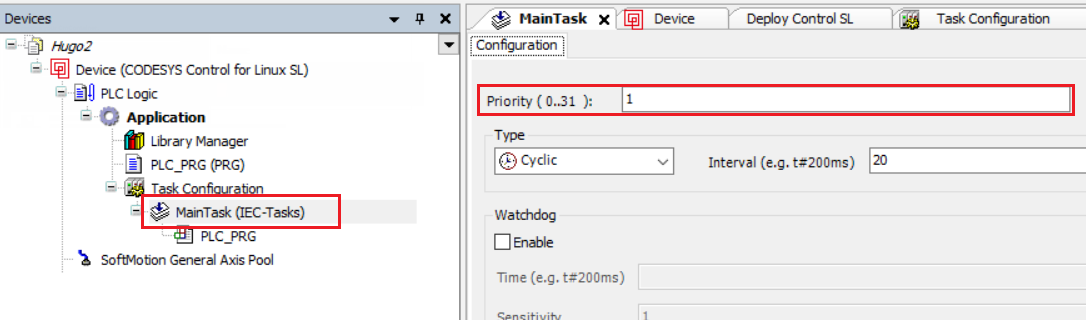
If you do not achieve the desired performance after all the steps mentioned here, then you can look at the following sections:
Fieldbus-specific information
Test
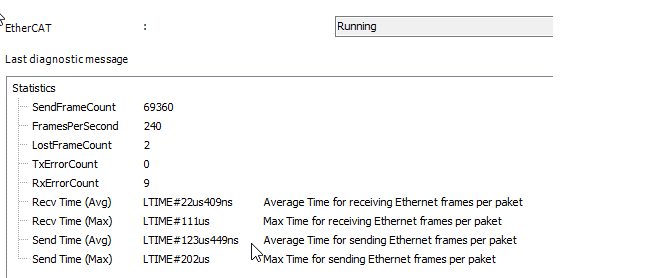
Check the
Send Time/Recv Timevalues on the EtherCAT status page.An x64 CPU with an Intel Core i7 processor and a good adapter should have less than 10µs.
ARM processors with an integrated chip will have ~50µs or more.
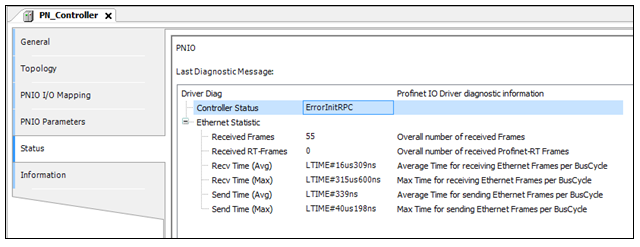
Check the
Send Time/Recv Timevalues on the PROFINET status page.An x64 CPU with an Intel Core i7 processor and a good adapter should have less than 10µs.
ARM processors with an integrated chip will have ~50µs or more.
Optimization options
To sort your priorities and required IRQs, you can use the PLC Shell commands
irq-listandirq-set-prio.These commands use the normal Linux priorities and not the IEC priorities.
This optimization is not possible in CODESYS Virtual Control SL, but rather on the host system.
Use a separate network adapter for the devices.
For more information, see the following:
[For experts] – Additional tools and topics
The tools and options described in this section are intended for advanced users. Because the actions to be taken depend heavily on the specific system, independent research is required. Therefore, we are unable to offer you any specific solutions.
KernelShark / kernel trace
If you discover that the cause of your performance problems has something to do with scheduling, then this is the program to choose. With the help of "kernel trace", you can check if your task is being interrupted by another task, another service, or an interrupt.
trace-cmd record -p functionYou can use KernelShark to examine the generated
trace.datfile.
In general, scheduling problems can be divided into two categories:
Supersession / preemption
If the interrupt or the task preventing execution is unnecessary, then disable it.
Increase the priority of your task or reduce the priority of the others.
Switch to a different CPU core.
Important
Check the effectiveness of the changes by using the programs described in the previous chapter.
Execution time
See below "Kernel Function Trace"
Kernel Function Trace
If the processing time of the code is too high, then you can use this tool to find the problem.
If the function with too high execution time is in your own code, then you need to optimize it.
If the function with too high execution time is in the kernel, then you can try to achieve the desired functionality with another kernel function. Alternatively, you could also pass configuration parameters to the kernel driver in order to reduce the execution time.
If none of these options solve the problem, then you will probably need to use more powerful hardware.
Use the following points to check if the right instrument for achieving your performance goals is listed with them:
PREEMPT_FULL
isolcpu
rcu_nocbs
rcu_nocb_poll
nosoftlockup
irqbalance disable
kernel.sched_rt_runtime_us