Element: Network
Symbol:

Shortcut: I
Function: Inserts a new network at the insert position
Call: Context menu in the LD editor
Requirement: A valid insert position is selected.
In the element bar, click the symbol. Then drag the cursor to the editor in order to display the possible insert positions. Drag the cursor to the desired insert position. When the insert position is valid, the cursor will show a plus sign. Release the mouse button there. Alternatively, you could also first click the symbol and then click the desired insert symbol in the editor.
A network is the base unit of an LD program. The networks are processed sequentially from top to bottom and numbered consecutively on the left.
A network corresponds to a single instruction. It contains expressions, program calls, function calls, function block calls, or a jump or return instruction.
A network can optionally be given a title, a comment, and a jump label. The title, comment, and jump label are located in the first, second, and third lines at the top of the network. The jump label is used as a target for the Jump element.
Insert Positions | Context | Description |
|---|---|---|
Symbol: | 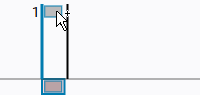 | Insert position for a new network above the existing network For example, when you select a contact in the element bar, an additional contact will be inserted into the new network. |
Symbol: | 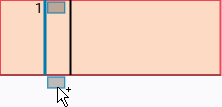 | Insert position for a new network below the existing network |
