How To: Activate a license on a workstation
These instructions explain how to activate a local license in the CODESYS Development System. The following instructions use a license for the CODESYS Professional Developer Edition as an example. The CODESYS Professional Developer Edition is licensed as a subscription.
In the CODESYS Store International, purchase a license for the CODESYS Professional Developer Edition.
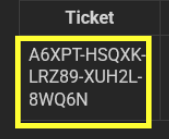
You will receive an email with information about the purchased license. It contains the ticket number required for activation.
Start the CODESYS Development System.
Run the Tools → License Manager command.
The License Manager will open.
Select the Workstation option and click Next.
The License Manager – Overview dialog will open.
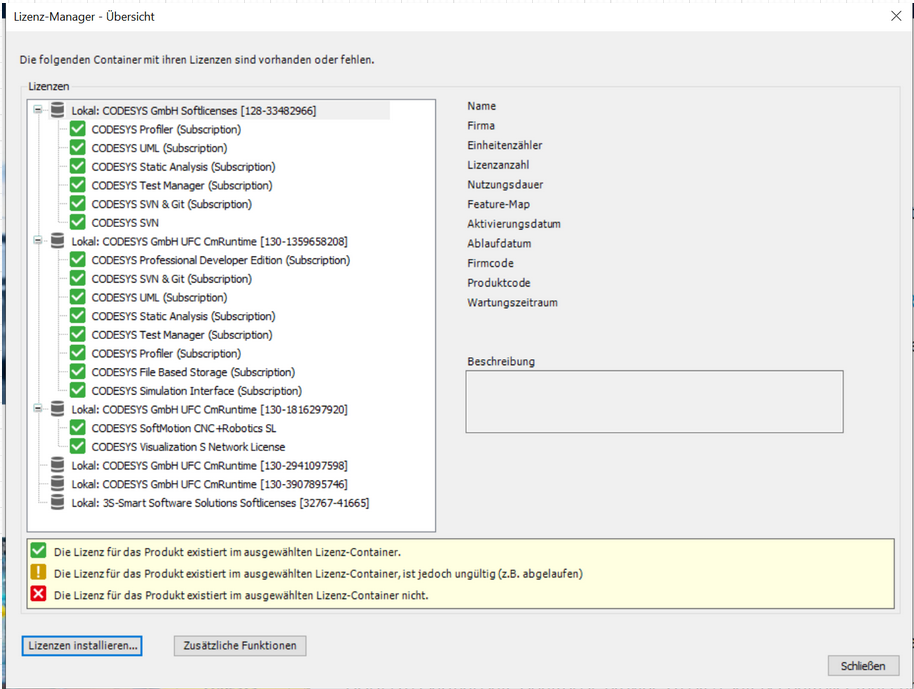
Click the Install Licenses button.
The Install licenses – Select Operation dialog will open.
Select Activate license and click Next.
The Install licenses – Activate License dialog will open.
In the Ticket ID input field, specify the ticket number from the email. The License server list box is already selected automatically as
license.codesys.com.After you have specified the ticket number, the Container list box will be automatically filled with the appropriate soft container.
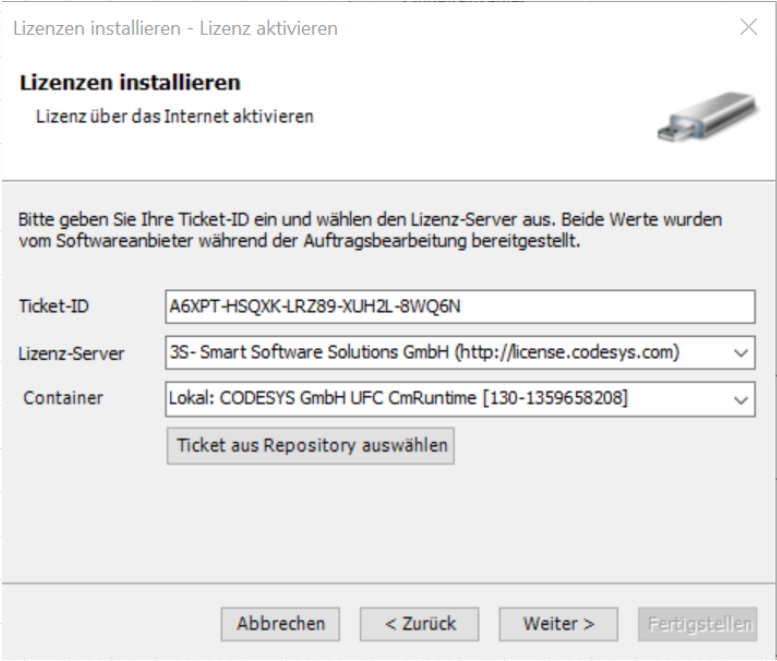
Click Next.
The connection to the license server (http://license.codesys.com) is established and the license will be activated.
Click Finish.
The Install licenses dialog will close.
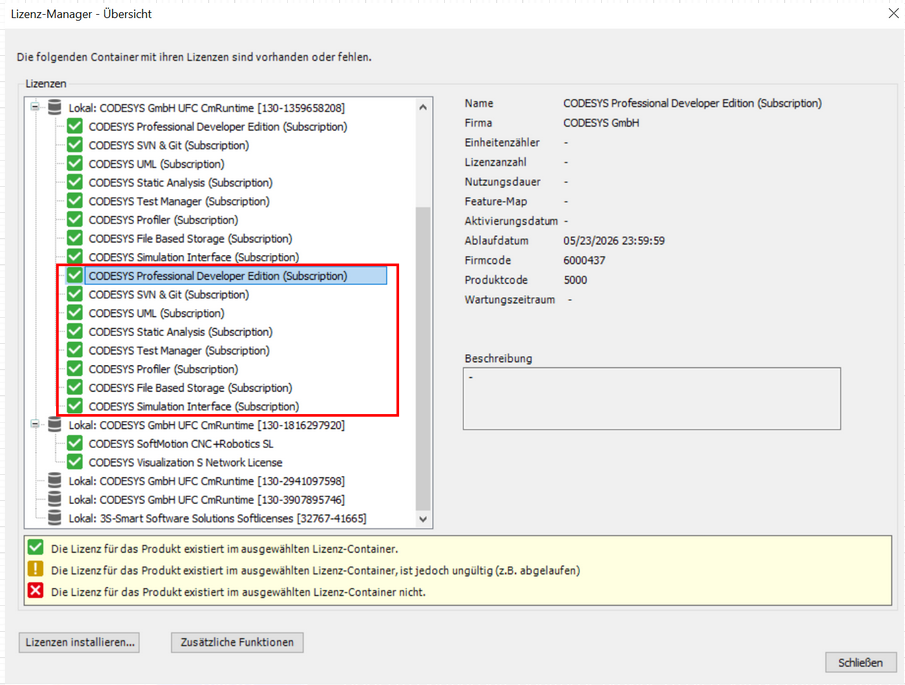
The License Manager dialog will refresh. The activated licenses are listed under the container.
For more information about soft containers, see the following: Soft Container (CmActLicense)