Enumeration with Text List Support
An enumeration can be supported by a text list. In this list, a symbolic name is defined for each enumeration value in different languages. You can use the commands in the text list menu to set which languages these are.
The names defined in the text list are in most cases needed for a visualization in order to display a meaningful, language-specific text instead of the simple value of an enumeration member. This can be helpful for users and contributes to a better understanding.
Tip
When you edit the enumeration type in the application, a prompt opens when you close the application and asks whether the affected visualizations should be updated automatically.
For more information, see the following: Using Texts
| DUT object: Double clicking the icon will open the declaration editor. The Add Text List Support command is available in the context menu of the object. |
| DUT object: Enumeration with text list support Double clicking the icon will open enumeration editor in a textual view. Icons are available on the right edge to switch views. The Remove text list support command is available in the context menu of the object. |


| The icon is located on the right edge of the enumeration editor. Clicking the icon will open the declaration editor. | Textual view 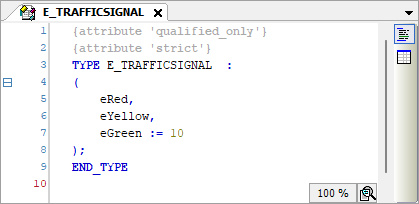 |
| The icon is located on the right edge of the enumeration editor. Clicking the icon will open the localization view. The text list support is displayed. | Localization view 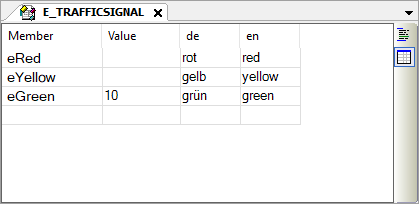 |


In a visualization, you can access implemented enumeration text lists. For example, in the text output of a visualization element, you can output the language-specific texts instead of the numeric enumeration value. You achieved this by specifying the enumeration variable with the enumeration name appended in angle brackets in the Text variable property of the visualization element.
Declaration of the enum variables:
PROGRAM PLC_PRG
VAR
    eTrafficLight : E_TRAFFICSIGNAL;
END_VAR
Implementation in IEC code:
eTrafficLight := E_TRAFFICSIGNAL.eGreen
Entry in the properties editor of the visualization element under the Text property:
The traffic light shows: %s
Entry in the properties editor of the visualization element under the Text variable property:
PLC_PRG.eTrafficLight <E_TRAFFICSIGNAL>
The element outputs the following text at runtime:
"The traffic light shows: green"