Devices, Device Repository
CODESYS 4 does not currently have a central device repository in the same sense that CODESYS 3 does. In CODESYS 4, the devices are managed in a file-based device structure (DeviceTree.json), in configuration files, and in a project-local cache of device descriptions. The project-local cache is located in a device project in the /Devices/.devDesc-cache subdirectory.
The device tree, which is displayed below Devices item in the workspace navigator, is defined in the DeviceTree.json file. As a result, all devices available below Devices are exactly those devices listed in the DeviceTree.json file.
For each identification key in DeviceTree.json, there is a device description in the directory *.fbsdev/Devices/.devDesc-cache. Among other things, these device descriptions are used as a source for default values for the device configurators. The exception here is Modbus, where the default values are currently fixed.
For each device in the DeviceTree.json file, there is a file named <device name>.device.json below the device name. This file contains the configuration of the device. All settings which the user makes on the configuration tabs in the CODESYS 4 user interface are stored in the configuration file.
When a device is added to the workspace navigator, all device descriptions which have been provided by the extensions are offered, as well as all device descriptions which are located in the project under *.fbsdev/Devices/.devDesc-cache.
Installing a device description
If you need a device description which is not available in CODESYS 4, then proceed as follows:
Open CODESYS 3 and select the Tools → Device Repository command.
Find the device whose device description you need and select the Export command.
Save and extract the ZIP file.
In CODESYS 4, right-click the Devices item and select the Add PLC command.
In the next dialog, select Upload new device description.
Click Choose File and open the device description exported from CODESYS 3.
Click "Upload".
The device will be added to the list.
Replacing the controller in the device tree
If you have created a project and the version of the inserted controller does not match the target device, then proceed as follows:
In the same workspace, create a new device project with the correct version of the controller (as described above).
Open the
DeviceTree.jsonfile of the new project and copy the"deviceName"and"identification"entries (abovechildren).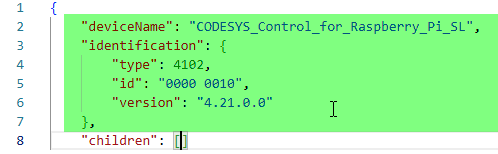
In the
DeviceTree.jsonfile of the original project, paste the copied"deviceName"and"identification"entries from the clipboard.In the file explorer, open the
Devicessubdirectory of the new project.Copy the
.devDesc-cachedirectory and the JSON file of the new controller.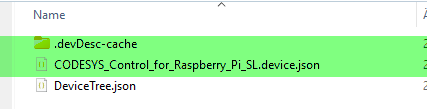
Paste these files in the respective directory of the original project. Overwrite any existing files when you do this.
Now the device tree of your project will contain the version of the controller which matches the target device.